
AI Product Video Generator for Shopify: An Operator’s Guide to Turning Browsers into Buyers
Learn how Shopify merchants can use an AI product video generator to stop losing shoppers. A step-by-step operator guide with analytics and SEO built in.
You have a product page where shoppers spend 90 seconds. They scroll, pause, scroll again. Then they leave without adding to cart. Your images are sharp, your copy is tight, but something is missing.
Often, what is missing is motion. Product videos do what static images cannot: they demonstrate size, texture, and real-world use in seconds. For Shopify merchants, creating those videos used to mean hiring freelancers or dealing with clunky editing software. Now an AI product video generator removes that bottleneck.
This guide is not about the next shiny toy. It is about diagnosing where video will improve your product pages, generating professional-quality product reels inside your existing workflow, and measuring whether the investment paid off, all without leaving your Shopify workspace.
Why Product Videos Stop Browsers from Clicking Away
Baymard Institute research consistently shows that poor product understanding is a top reason shoppers abandon a page. A short product video bridges that gap. When someone sees how a bag sits on a shoulder or how a face serum applies, the mental friction drops. That translates directly into higher add-to-cart rates.
Most Shopify merchants know this. The problem is production time and cost. An AI product video generator changes that by turning a handful of product images into a ready-to-publish reel in minutes. But even with an AI generator, you need to know where to place those videos for maximum impact.
- Product pages with video can increase conversion by up to 80%, according to multiple ecommerce studies.
- Shoppers who watch a product video are more likely to remember the item and return to buy.
- Video lets you answer sizing, use case, and quality questions that text and images cannot.
Useful next step: Baymard Institute research.
For broader context, review Shopify’s guide to product video best practices.
Step 1: Identify the Product Pages That Need a Video First
Throwing videos on every page is a waste of time. You want to identify the product pages where shoppers are stalling. This is where session replays and heatmaps become your first line of insight.
Inside Nimora’s workspace, you can replay a few sessions for a high-traffic product. Watch where the cursor stops, where the scroll depth drops, and where the hesitation happens. Often it is the same spot: just below the main image, right where a short how-to or lifestyle video would remove doubt.
Heatmaps confirm this at scale. If you see a cold zone exactly where you might embed a video, you have found your candidate. Start with the three product pages that get the most traffic but have the lowest add-to-cart rates. That small, focused list will give you measurable lift.
Useful next step: Nimora’s workspace.
Step 2: Generate a Product Video Without Shooting a Single Frame
Once you have your target products, open Nimora’s AI Studio. The AI product video generator works with the product images already in your Shopify media library. Select 3 to 6 images that show different angles or use cases. Choose a style—lifestyle montage, quick demo, before-and-after—and let the AI assemble a 10- to 15-second reel.
The output is a crisp, brand-safe video with smooth transitions and a text overlay option. You do not need to write scripts, record voiceovers, or sync music manually. The generator handles pacing and formatting for mobile-first shopping feeds. If the initial version needs a small tweak, you can regenerate in seconds without opening a separate editor.
This step alone replaces the back-and-forth with a video editor and the weeks spent waiting for a finished asset. For a merchant managing 200 SKUs, it means you can finally put videos on your hero products without sacrificing speed to market.
- No raw footage, no voiceover, no editing timeline needed
- Pull existing product images directly from your Shopify library
- Regenerate in seconds if the style or flow is off
Step 3: Publish and Optimize for Search Visibility
Adding a video to your product page is not just a design decision. It affects how Google surfaces your product in search results. Google Search Central explicitly recommends using structured data to help search engines understand video content. Without it, that product reel might sit on your PDP and never drive organic traffic.
Nimora’s JSON-LD rich snippet generator can add the correct schema markup for your product videos automatically. Once the video is embedded, the tool appends the necessary properties: name, description, thumbnail URL, and upload date. This tells Google that your product page contains a video, which can earn a video snippet in the search result. That little thumbnail next to your organic listing can increase click-through rates by double digits.
Also, check how the video file impacts page speed. An uncompressed video can tank your Core Web Vitals. Use Nimora’s image and media scanner to ensure your video is optimized for the web. If the page gets heavy, the scanner surfaces it so you can compress the file before traffic sees a slow load.
Useful next step: Nimora’s JSON-LD rich snippet generator.
For broader context, review Google Search Central.
Step 4: Measure the Real Revenue Impact, Not Just Views
Merchants often track video views and call it a day. Views do not pay the ad bill. You need to know whether the page that got a video started converting better and whether that converted traffic came from organic, paid, or social.
Build a tracked UTM link for your product page using Nimora’s bulk UTM builder. Then, when you share the product link in an email, social post, or ad, you can isolate the impact of traffic that sees the video. Combine that with Nimora’s conversion funnel tool, and you can compare the add-to-cart rate of sessions that watched the video versus those that did not.
Finally, bring everything back to your ROAS. If you are running ads to that product page, plug the updated numbers into Nimora’s ROAS calculator. You might find that after adding a video, the same ad spend generates 25% more revenue because the landing page closes the knowledge gap faster. That is the metric that matters.
Useful next step: Nimora’s bulk UTM builder.
One Workspace, Without the Tool Stack Overload
The normal workflow for a product video campaign looks like this: a separate analytics tool, a video creation tool, an SEO plugin, a UTM builder, and a spreadsheet to calculate ROAS. Each tool has its own interface, its own data silo, and its own learning curve.
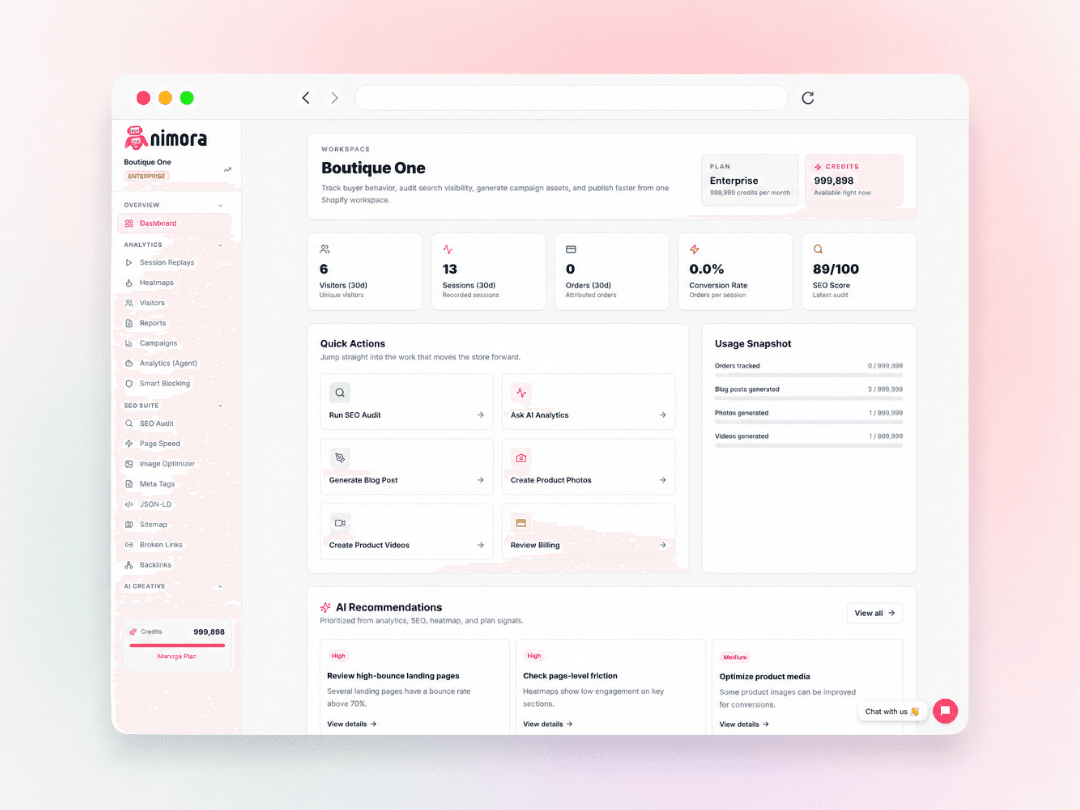
Nimora collapses that into one Shopify-native workspace. You do not export data, import it somewhere else, and stitch conclusions. You watch a session replay, notice a drop-off, generate a product video in the same tab, add structured data, build a UTM string, and monitor the lift. All inside the store you are already working on.
For agencies managing multiple client stores, this means less time toggling tabs and more time actually improving results. For solo operators, it means you can execute like a full growth team without hiring one.
Useful next step: one Shopify-native workspace.
FAQs
Do AI-generated product videos look fake or hurt my brand?
Modern AI product video generators create smooth, natural-looking reels that are often indistinguishable from manually edited clips. You can control the style and pacing to stay on brand. If a video does not feel right, regenerate it in seconds. Always preview on both desktop and mobile before publishing.
Will a product video slow down my Shopify store?
A poorly optimized video can hurt page speed. Compress the file and consider lazy-loading. Nimora’s media scanner checks for heavy video files that could drag down your Core Web Vitals and gives you a clear fix.
How do I know which product pages benefit most from a video?
Start with high-traffic pages that have below-average add-to-cart rates. Session replays and heatmaps inside Nimora show you exactly where shoppers hesitate. Place a short demo or lifestyle video in that zone and monitor the conversion lift.
Turn this workflow into a repeatable growth system
Stop guessing where product videos will lift your revenue. Install Nimora for free on the Shopify App Store today. Use the analytics to pinpoint which pages need a video, generate one inside the AI Studio, optimize it for search, and track the exact conversion lift, all without leaving your store.