
AI Product Video Generator for Shopify: An Operator’s Workflow That Moves Product Pages Faster
Turn static product pages into high-converting experiences with AI-generated video, without blowing your creative budget. A practical operator’s guide for Shopify stores.
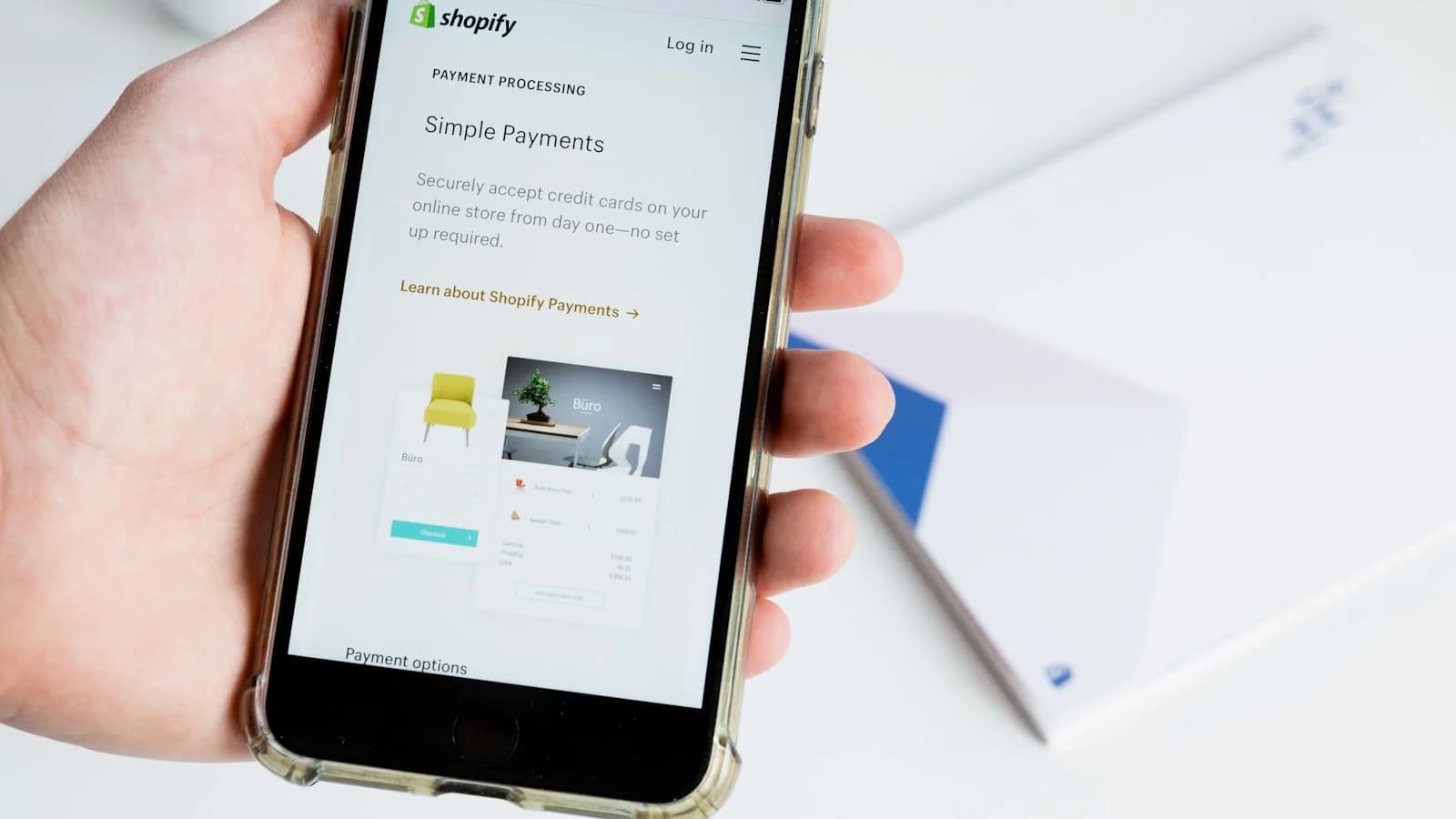
Most Shopify product pages are still a grid of still images and bullet points. A visitor lands, scrolls once, and leaves. You’ve spent good money on ads, only to watch the session die on a page that doesn’t show the product in action. It’s not that video doesn’t help—it’s that video feels too expensive, too slow, or too disconnected from the actual data sitting inside your store.
That’s changing fast. An AI product video generator built into your Shopify growth workspace can turn what used to be a three-week agency cycle into a same-day workflow. But throwing video onto a product page without knowing what shoppers need is just decoration. The operator’s edge comes from pairing AI creative generation with the analytics, SEO, and speed checks that tell you exactly where video earns its keep. In Nimora, the workflow connects session replays, heatmaps, conversion funnels, AI product images and reels, structured data, and a ROAS calculator—so you create product video that moves revenue, not just airtime.
Stop Guessing Where Product Videos Fit—Let Session Data Point the Way
Great product video answers a question a visitor hasn’t yet asked out loud. But you won’t find those questions in a creative brief. You find them in session replays where shoppers hover over the ‘Size’ dropdown for nine seconds, then exit. In heatmaps that show mobile users never scroll past the second image. In conversion funnels that leak 60% of visitors between the gallery and the Add to Cart button.
Before you generate a single frame, open Nimora’s analytics workspace. Watch a handful of replays for your top three SKUs. Where does attention freeze? What gets ignored? That’s your video storyboard. A product that needs to demonstrate fit gets a quick AI-generated try-on or size-comparison reel. A product where shoppers can’t gauge material gets an unboxing-style clip. The video format follows the friction—not the other way around.
- Identify drop-off zones with session replays and heatmaps
- Choose video types that directly address observed shopper hesitation
- Set a baseline conversion rate for the product page you intend to improve
Useful next step: analytics-first product page workflow.
For broader context, review how product page design impacts conversions.
Generate Product Videos That Match Real Buyer Questions (Not Brand Fluff)
Generic brand films are the last thing you need. AI product video generators now let you produce short, intent-driven clips that slot directly into the gallery or just above the fold. Using Nimora’s AI Studio, you can turn a set of existing product photos into a 15-second reel showing a bag opening, a device being held, or a garment worn from multiple angles. No reshoot, no storyboard meeting.
You want one to three silent, text-overlay videos per PDP. One demonstrating scale (hand holding the product), one answering the top question from session data (‘What does the pocket look like inside?’), and maybe one showing the item being used. Upload them into Shopify’s media section, but don’t stop there. Because video files can tank page speed and SEO, you need to keep the technical layer tight.
- Reuse existing product photos for AI-generated video
- Produce short, silent clips with overlay text for mobile shoppers
- Place the most intent-aligned video in the first media slot
Useful next step: check how these videos affect page speed.
Embed Video Structured Data Without a Developer—Get Rich Results
Google can display a video thumbnail in search results when your product page includes valid VideoObject structured data. Most Shopify stores miss this because adding JSON-LD for video often requires editing theme files. Nimora’s JSON-LD Rich Snippet Generator lets you create the correct markup for your product video, including thumbnail URL, duration, and upload date, then paste it directly into your theme header without touching a developer.
Once the structured data is live, test the URL in Google Search Central’s Rich Results Test. When Google picks it up, your product page can stand out in the SERP with a video snippet—improving click-through rates well before the visitor even lands.
- Generate VideoObject JSON-LD in minutes
- Verify with Google’s Rich Results Test
- Combine with product schema for a full rich result
Useful next step: JSON-LD Rich Snippet Generator.
For broader context, review Google’s documentation on video structured data.
Track Every Video’s Revenue Impact with UTM Campaigns and ROAS
If you’re running paid social that sends traffic to these new product pages, you need to tie video engagement to return on ad spend. Build dedicated UTM links for each ad creative that features the product video. Nimora’s Bulk UTM Link Builder lets you set source, medium, campaign, and content parameters for dozens of URLs at once—so you can isolate which product page variant (with or without video) performs better inside Meta Ads Manager, Google Ads, or email.
Back inside Nimora, use the ROAS Calculator to compare revenue attributed to the video-enhanced product page versus the baseline. Input your ad spend, revenue from those UTMs, and get a clear ROAS figure. If the video page yields a 1.8 ROAS versus 1.2 for the static page, you have the numbers to justify scaling AI-generated video across your entire catalog.
- Create UTM-tagged links for each video variant with the Bulk UTM Builder
- Run side-by-side tests in ad platforms
- Calculate ROAS per product page to measure video’s direct impact
Useful next step: Bulk UTM Link Builder.
Keep Your Product Pages Lightning Fast Even with Embedded Video
Loading a video file inline will crush your page speed if you’re not careful. Use lazy-loaded, hosted embeds (YouTube or Shopify’s own CDN) and keep the poster image well compressed. Run the product page through Nimora’s Image Speed Scanner to spot bloated thumbnails or unoptimized product images that compound the video’s weight. A page that adds a 3‑second delay can lose 20% of conversions, and video is often the culprit.
Check the scanner’s file-size recommendations and compress images losslessly. A product page with an AI-generated video and an 80‑KB poster image will load visibly faster and reduce bounce—keeping the revenue gains you just measured.
- Lazy-load video to avoid blocking the render path
- Compress poster images to under 100 KB
- Scan the full page with Nimora’s speed scanner after adding video
Useful next step: Ecommerce Image Speed Scanner.
For broader context, review Shopify’s guide to adding video to product pages.
A Repeatable AI Creative Workflow for Product Pages
The playbook is simpler than you think. Start with behavior data to pick the right product and the right video concept. Generate the asset in minutes using Nimora’s AI Studio. Wrap it in proper structured data. Tag your paid links and measure ROAS. Check page speed before you scale.
Once the workflow becomes repeatable, you can roll it out across your top 50 products without a creative team. The tools are all inside one Shopify growth workspace—no stitching, no logins, no agency delays.
- Step 1: Analyze session replays for friction points
- Step 2: Generate intent-driven video with AI Studio
- Step 3: Add VideoObject JSON-LD
- Step 4: Build UTM links and measure ROAS
- Step 5: Run speed scan and compress poster images
- Step 6: Scale to high-impact product pages
Useful next step: full Nimora tools suite.
FAQs
Do I need a professional video team to use an AI product video generator for Shopify?
No. AI video tools inside Nimora let you turn existing product photos into short product reels without filming. The generator handles motion, transitions, and text overlays, so you stay focused on conversion tactics, not production logistics.
How do I know if adding video to a product page actually increases sales?
Use Nimora’s ROAS Calculator and UTM-tagged links to compare performance before and after adding video. Track revenue per product page from specific campaigns. You’ll see the exact return instead of guessing.
Turn this workflow into a repeatable growth system
The operator’s move is to stop treating product video as a separate creative project and start treating it as a conversion lever tied directly to real shopper behavior. Nimora gives you the analytics to spot the opportunity, the AI Studio to create the video, the structured data to get it surfaced in search, and the ROAS calculator to prove it worked. Install Nimora free on your Shopify store and run the full workflow on your first product page this week.