
WooCommerce to Shopify Migration: An Operator’s SEO Workflow That Protects Revenue and Product Page Performance
A practical SEO workflow for migrating from WooCommerce to Shopify without losing traffic or revenue. Includes redirect mapping, JSON-LD, image media refresh, and post-launch validation.
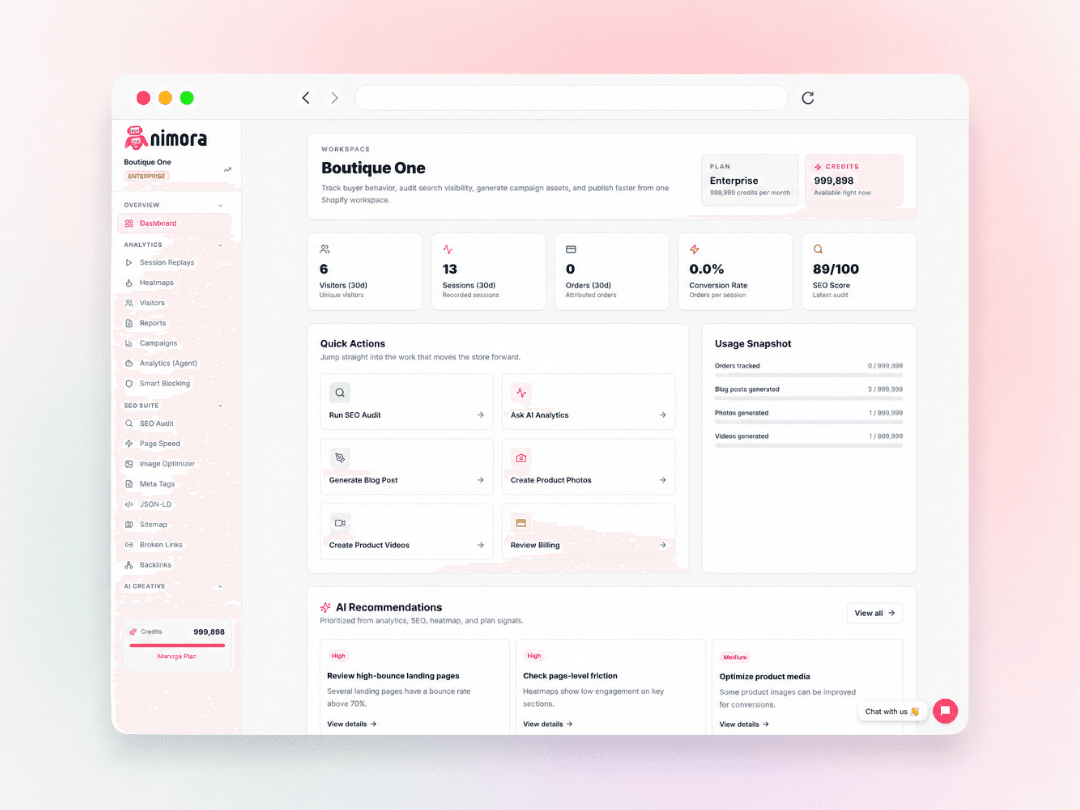
Moving a store from WooCommerce to Shopify is not just an IT project. It is a revenue protection exercise that starts and ends with search traffic. Every product page, category URL, image asset, and structured data markup you handle poorly can quietly drain organic clicks and conversions for months after launch.
Most merchants obsess over how to export products and import them into Shopify. That part is straightforward. The real stress shows up later, when you notice that your best sellers suddenly rank on page two or your product rich results vanish from the SERP. An operator-led SEO migration workflow prevents these leaks and actually gives you a chance to improve product page performance during the move.
Why Rushing a Replatform Can Torch Revenue That Already Exists
On paper, Shopify simplifies inventory management, checkout, and scaling. But between your old WooCommerce store and a shiny new Shopify theme sits a minefield of SEO variables. Over the last three years, we have watched DTC brands lose 30 to 50 percent of their organic traffic in the first quarter after a hasty migration. The culprit is rarely a single mistake. It is a chain of small misses: 404 pages where collection URLs used to live, missing alt text on 2,000 product images imported without attributes, zero JSON-LD on your new product detail pages, or a forgotten hreflang tag that tanks a secondary market.
The good news is that these are fixable before launch. The even better news is that with one Shopify-native growth workspace, you can run your pre-migration SEO audit, bulk-fix meta tags, generate media, and watch real visitor behavior without stitching together five different tools. When you move from WooCommerce to Shopify, you are not just swapping a platform. You are rebuilding the revenue architecture that brings shoppers to your store.
- Typical organic traffic drop after a sloppy migration: 30-50% in Q1
- Recovery time without SEO intervention: 6-9 months on average
- Main failure points: broken redirects, missing structured data, ignored image assets
Useful next step: install Nimora free.
Phase 1: A Pre-Migration SEO Audit That Protects Your Ranks
Before you export a single product CSV, export your SEO reality. That means crawling your existing WooCommerce site exactly as Google sees it. Document every URL that receives organic traffic, every meta title and description that currently drives clicks, and every product page that earns rich snippets through review stars, price, or availability markup. In Nimora’s SEO audit tools, you can pull a full snapshot of your indexed pages and underperforming ones in minutes, flag missing meta tags, and surface image size issues that quietly hurt Core Web Vitals. You do not need a separate crawler, a separate SEO tool, and a separate analytics dashboard. The workspace unifies this inside the same Shopify-connected environment where you will run your new store.
The audit output should be a simple spreadsheet, but a strategic one. For every URL, note the current organic clicks over the last 12 months, the primary keyword the page ranks for, and whether the page has custom alt text, a proper meta description, and valid structured data. This becomes your migration map, not just a URL list. When you migrate to Shopify, you will rebuild each of these pages with full awareness of what made them work.
- Crawl all indexed URLs from the WooCommerce store
- Record organic clicks per URL (last 12 months) and current meta data
- Flag pages missing alt text, JSON-LD, or bloated images
- Create a migration map that marries old URLs to new Shopify handles
Useful next step: audit your on-page SEO health with Nimora.
For broader context, review Google Search Central’s site moves guide.
Phase 2: Mapping Every URL and Nailing the 301 Redirects
Redirects are where most migration gains evaporate. If your WooCommerce product URL is /product/leather-weekender-bag/ and your new Shopify handle becomes /products/leather-weekender-bag, that trailing slash difference alone creates a redirect that passes juice. But if you leave old collection pages, tag archives, or blog posts without a 301 map, you are telling Google that your most-linked assets no longer exist. Worse, you are sending real shoppers to a generic 404 page instead of a product page that could still convert.
Build your redirect map column by column: old URL, new URL, HTTP status code (always 301 for permanent moves), and a notes column for priority. Start with the high-click pages from your pre-migration audit. Then handle collection root pages, product category pages, and any custom landing pages that drive paid or email traffic. If you move from WooCommerce to Shopify, the store structure changes, so use Nimora’s bulk meta tags workflow to also double-check that your canonical tags on the new Shopify pages point to the clean, redirect-free version. No circular references.
- Start with pages that generated organic clicks in the last 12 months
- Include collection pages, product category pages, and custom landing pages
- Use 301 redirects, not 302, for all permanent URL changes
- Validate new canonical tags to avoid self-referencing loops
Useful next step: bulk meta tags and redirect validation.
Phase 3: Bulk Meta Tags and JSON-LD; Don’t Let Shopify Start Silent
One of the quietest revenue leaks in any WooCommerce to Shopify migration is missing structured data. Shopify product pages can carry rich snippets for price, availability, review stars, and shipping details, but only if the JSON-LD is present and correctly configured. During an import, WooCommerce product attributes often land as flat text, not as structured markup. If Google cannot read your pricing, your search listing looks like a plain blue link while competitors show star ratings and price badges right in the SERP.
With Nimora’s JSON-LD rich snippet generator and bulk meta tag tools, you can add or repair structured data across hundreds of product pages without touching liquid code. Select the products that need price, availability, and aggregate rating markup, define the template once, and push the updates directly back to your Shopify store. This step alone often recovers lost rich snippet real estate within a few weeks of launch.
- Missing JSON-LD kills product rich results in Google
- Bulk-edit structured data across all migrated product pages
- Include price, availability, and aggregate rating in the template
- Validate with Google’s Rich Results Test after pushing updates
Useful next step: generate JSON-LD structured data.
For broader context, review Shopify Help Center article on importing products.
Phase 4: Reviving Your Product Pages with AI Media Workflows
WooCommerce product pages often suffer from neglected visual assets. Images that were optimized for a WordPress theme years ago might now be 3MB files without alt text. Product photography might be inconsistent, missing lifestyle shots or scale references. During a migration, merchants rarely have time to manually fix 500 product images. They import as-is, and page speed suffers along with conversion rates.
This is where an AI creative workflow inside your store management workspace changes the math. While you are importing products into Shopify, Nimora’s AI product photo generation can create consistent, on-brand product images from simple descriptions or reference shots. The built-in image speed scanner flags oversized images, strips unnecessary metadata, and serves compressed versions that still look sharp on retina screens. You can also generate short product reels for social and product pages directly from within the same dashboard. Instead of hiring a media team for a one-time migration refresh, you ship better product pages than you ever had on WooCommerce.
- AI-generated product photos ensure uniform styling across your catalog
- Image speed scanner compresses assets without visible quality loss
- Product reels can be generated from still images for social proof
- Alt text workflows enforce accessibility and SEO simultaneously
Useful next step: scan and fix image speed leaks.
Phase 5: Post-Launch; Session Replays and Heatmaps That Expose Friction
Once the redirects are live and the media is refreshed, the work is not done. Even a technically clean migration introduces new user experience patterns. Shoppers who used to find the “Add to Cart” button in a certain spot on your WooCommerce theme might now pause, scroll erratically, or exit on a collection page that no longer makes sense. The only way to catch this is through behavioral analytics that show you exactly where buyers stall.
Nimora’s session replays and heatmaps let you watch real visitor sessions inside your new Shopify store. You can see which product page elements attract dead clicks, which images never get hovered, and where mobile shoppers rage-tap. If you spot a sudden drop in add-to-cart rate on a migrated bestseller, replay a few sessions for that page. Often the fix is as small as moving the image gallery above the fold or shortening a description that now wraps poorly on mobile. Because Nimora does analytics, SEO, and AI media in one workspace, you can apply the fix and regenerate the product reel or alt text without opening another tool.
- Watch session replays to spot buyer confusion on new layouts
- Use heatmaps to identify dead clicks and ignored CTAs
- Compare pre- and post-migration conversion metrics per product
- Apply quick creative fixes using AI image and reel generation
Useful next step: catch friction with heatmaps and session replays.
Migration Patterns That Apply Across Platforms
The workflow we just laid out for WooCommerce to Shopify is not unique. The same principles protect organic traffic when you move from Magento, PrestaShop, Wix, Squarespace, or any other platform. The risks are identical: broken URLs, lost rich results, sluggish product pages, and forgotten media assets. We have built dedicated migration tools to help you audit and map URLs for each platform, whether you are coming from Magento, PrestaShop, or another CMS.
If you handle a migration agency or you are a founder who wants to future-proof the move, the common thread is to treat migration as an SEO-first project. Start with a crawl, build a redirect map, enforce structured data, refresh media, and validate post-launch behavior. The fewer tools you bounce between, the fewer seams you create in your workflow. A workspace that ties analytics, SEO, and AI creative into one Shopify-native environment removes the temptation to cut corners.
- Same SEO risks exist for Magento to Shopify, PrestaShop to Shopify, etc.
- Dedicated migration tools audit URLs and automate mapping
- Structured data, media, and user testing must be part of every platform switch
Useful next step: Magento to Shopify migration workflow.
FAQs
Will my WooCommerce SEO rankings drop after moving to Shopify?
They can if redirects are missing or product page structured data disappears. With a proper 301 map, meta tag import, and JSON-LD repair, you can often stabilize rankings within a few weeks. Use a pre-migration audit to know exactly which pages drive organic traffic and protect them first.
How do I handle product images during a WooCommerce to Shopify migration?
Do not just copy large image files. Run an image speed scanner to compress them, generate missing alt text in bulk, and consider using an AI product photo generator to create consistent visuals for your catalog. Page speed and accessibility affect both SEO and conversions.
Can I keep my WooCommerce product reviews after migration?
Yes, you can import reviews into Shopify using apps or CSV imports. Make sure the review structured data (aggregate rating and review count) is carried over or rebuilt using a JSON-LD tool so Google can display star ratings in search results.
What is the biggest mistake merchants make during migration?
Skipping the pre-migration crawl and not building a mapping doc for every URL. Without that, 404s pile up, internal links break, and seasonal landing pages vanish. Treat the crawl as your migration blueprint, not an afterthought.
Turn this workflow into a repeatable growth system
A WooCommerce to Shopify migration can refresh your brand and speed up scaling, but only if you protect the organic revenue you already worked for. Install Nimora free to run your pre-migration SEO audit, fix structured data across hundreds of products, refresh product images and reels with AI, and watch exactly how shoppers behave on your new store. It is the only Shopify-native workspace that handles analytics, SEO, and media inside one place so you do not ship a broken storefront on launch day.